Import invoices
Bring in invoices you already sent, with their payments, and undo the import if something looks wrong.
Updated Nov 18, 2026
An Admin can bring in invoices from another app. A teammate who is not an Admin sees Only an Admin can import data. If you are switching from another app, see Moving from another tool for what to export, and the order to bring it in. Clients should come in before invoices.
-
Go to Settings, then Data, then Import.
-
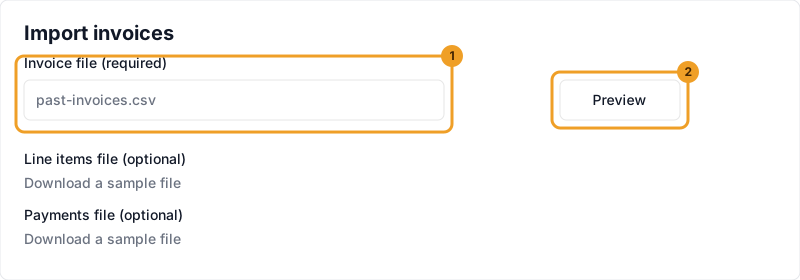
Choose Invoices (with line items and payments). Read the guide: Import invoices opens this page. The Invoice file is required. Line items file and Payments file are optional. Each file has Download a sample file. Line items and payments attach only to invoices in this same import. They cannot be added later.
-
Track and Invoice recognizes Harvest and Moxie files on its own and fills in a recommended mapping you can change. Any other file is matched by its column names. Import history labels the import Moxie, Harvest, or Spreadsheet.
-
After you choose a file, the page matches columns it recognizes. Common names such as Due, Payments, and Date paid are filled in, and a plain Total is used instead of Total in USD when both are in the file. A required column, such as invoice number, invoice date, or total, needs a match. Set a column you do not need to Ignore. If a file cannot be used, the message says what is wrong, such as an empty file or a required column that is not matched.
-
Click Preview. The page says Preview first to check your file until a preview has run. Read the counts, then click Import. While it runs, a bar shows how many invoices are in, then line items and payments when those files are included. Import cannot be clicked again until that finishes.
-
Importing only adds records. Nothing is sent to your clients: no emails, no payment reminders, no Pay links, no receipts, and no charges.
The invoice file, the line items file, and the payments file can each be a CSV, a TSV, or an Excel workbook (.xlsx or .xls). A tab-separated file is read as a TSV even when the name ends in .csv. A file with one sheet goes straight to the column matches. A workbook with several sheets lists every sheet with its name, its row count, and the first few column names, and you pick the sheet for this import. Empty sheets are shown and cannot be picked. The page selects the sheet whose name and column names look most like invoices, line items, or payments, and you can pick another one. For the line items and payments files, choose Use this sheet to load the selected sheet. After the import finishes, or if you leave it, that workbook stays loaded for the rest of this visit, so you can pick a different sheet without uploading again. Use a different file clears it.
After Import finishes, the results stay on the page so you can read them. They show how many invoices came in, the amounts, and which clients were new or already matched. Import stays grayed out, so the same files cannot be imported a second time by mistake. Start a new import sits directly under those results. It clears the results and the column matches, then scrolls back to the top of Import. The workbook you uploaded stays loaded for this visit, so you can pick another sheet. Use a different file is there when you want to choose a new file instead.
A missing line-items file gives each invoice one line for its total. A missing payments file gives each paid invoice one payment for the amount paid. Add those files before you import if you want each line and each payment.
The client cell is matched to a company name first, then a contact's full name, then an email when the file has one. Extra spaces and punctuation are ignored, so "Lincoln Institute" and "Lincoln Institute." are the same client. A name that matches nobody is listed with Create new client, which is the usual choice, or Use existing client. A name that matches more than one client stays in that list until you pick the client. Those rows are not skipped. Changing a name choice or a payment method updates the preview on its own. Preview and Import sit above the results and again underneath them. An invoice whose total is $0 and whose status is Paid comes in as Paid with no payment record. Payment method can be mapped on the invoice file and the payments file. On a Moxie invoice file, Paid by holds the payment method, so it maps to Payment method. On Moxie's Payments sheet, Paid by is the name of the person who paid, so it is left unmatched and Source maps to Payment method. The choices are the same as Record Payment, plus Imported: Wire Transfer, ACH, Check, Credit Card, Cash, PayPal/Venmo, Zelle, and Other. ACH stays ACH. Wire and wire transfer become Wire Transfer. Bank transfer, bank, and BANK_TRANSFER start as ACH. PayPal and Venmo start as PayPal/Venmo. Zelle stays Zelle. The preview lists each payment method from the file, with how many payments use it, and you can change what that value becomes. Check and cheque become Check. Card brands become Credit Card. Cash stays Cash. Anything else is Other, and the original words are saved on the payment note. A blank method stays Imported.
A status of write-off, write off, or written off, in any capitals, becomes Written off. That used to be treated as Void, and it is not anymore. The preview counts those invoices the same way it counts void and partly paid invoices, and the amounts line shows the forgiven total. The import records a payment for the amount paid in the invoice file, or from the payments file when you include one. The written-off amount is the total minus that payment. The write-off date is the paid date in the file, or the invoice date when the file has no paid date. Nothing is emailed.
What imported records look like
An imported invoice shows a grey Imported badge on the Invoices list. Clients, projects, catalog items, and time entries show that badge on the record, not on the list. Open Filters and turn on Imported to see only those records. On Time, the chip says Source: Imported.
Hours on an imported invoice are invoice lines. They are not time entries. To include old hours in time reports, also import your time entries. When the file does not say whether a row was billed, the import asks you to choose. Mark as already billed keeps that time out of Unbilled so it is not billed twice. It is not attached to an invoice.
Import history
Import history is on Settings, then Data, then Import, under the two import sections. It lists each past import, and from a row you can undo that import. Restore... can bring it back for 90 days after the undo. The heading starts open, and the page remembers whether you left it open or closed. Click the heading, or press Enter or Space, to show or hide the list.
Each row shows where the import came from (Moxie, Harvest, or Spreadsheet), the file name, and who imported it, on one line. A sheet from a workbook shows the file and the sheet, such as "clients.xlsx (Contacts sheet)". Imports made before this change keep the name they had, and ones labeled Field Mapper now show as Spreadsheet.
- Undo... hides the records that import created, when they have not been used since. The preview lists Will be hidden.
- Stays as it is means a record was used after the import, so it is kept. An invoice stays if it was emailed after the import, if a payment or refund was recorded after the import, or if its lines or totals were edited after the import. Importing it as Sent does not count, and voiding it does not count. A client you have invoiced since, or a time entry already on an invoice, also stays.
- Restore... brings a hidden import back. If another undone import still hides a client, project, or task that this one needs, the notice says Restore the ... import first. Restore that earlier import, then try again.
- Restore stays available for 90 days after the undo. After that, the row keeps Undone with the date and name, and says Restore period ended.
- Cancel import appears in Field Mapper after you choose a data type. On later steps it sits beside Back. On the steps before the results, it goes back to the upload step with the same type still chosen, clears the file, and writes nothing.
Common questions
No. Import does not send email, start reminders, turn on Pay links, attach receipts, or charge a card or bank account.
No. Line items and payments have to be in the same import as the invoices. Preview the files together before you click Import.
An Admin. Undo... and Restore... are on Import history.
Did this help?